
Introduction
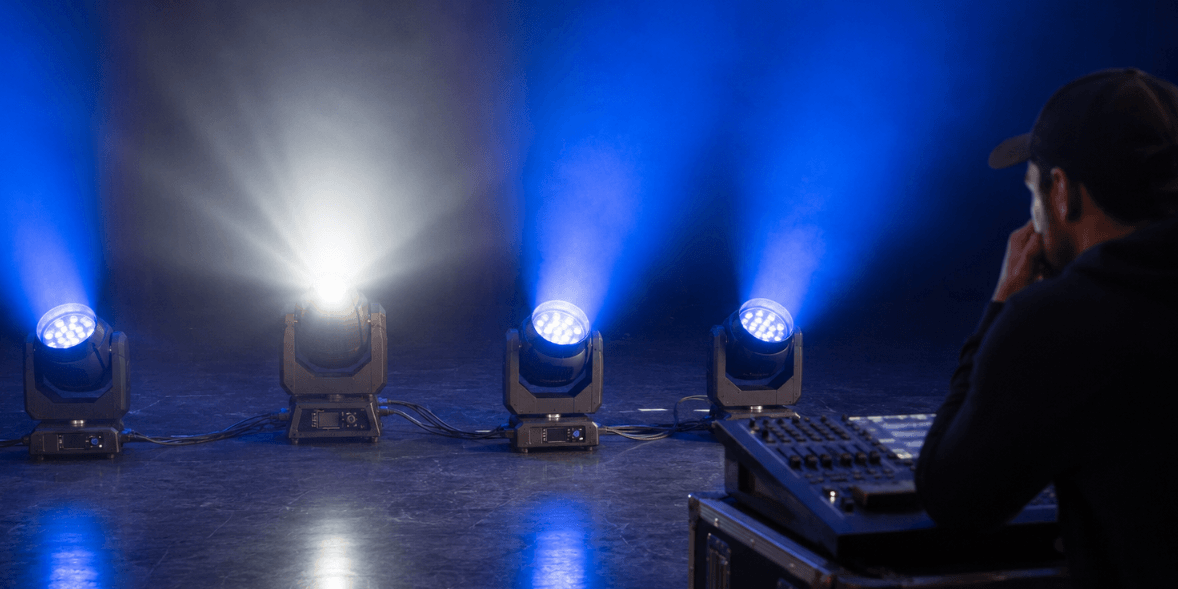
Random flickering or unexpected flashing can happen with many DMX-controlled lighting fixtures, including moving heads, PAR lights, wash lights, light bars, and strobes.
At first, it may look like the fixture is defective. In many cases, however, the cause is related to DMX signal, fixture mode, channel settings, cue programming, cables, power stability, or the way several fixtures are connected.
The goal of troubleshooting is not to guess the cause immediately. The goal is to isolate where the issue comes from.
Before changing advanced settings, always check the user manual for your exact fixture model. Menu names, DMX channel modes, reset functions, and channel value ranges can vary between lights. The checks below apply to most DMX-controlled lighting setups, but the exact operation should always follow the fixture manual.

1. Check Whether It Is One Fixture or the Whole DMX Line
Start with one simple question:
Is only one fixture flashing, or are several fixtures flashing at the same time?
This tells you where to look first.
If only one fixture flashes, the issue may be related to that fixture, its address, its channel mode, its cable connection, or its position in the DMX chain.
If several fixtures flash together, the issue is more likely related to the controller, cue programming, DMX signal chain, terminator, power source, or a shared setting.
A quick way to think about it:
| What You See | Check First |
|---|---|
| One fixture flashes | Fixture mode, address, cable, fixture setting |
| Several fixtures flash | Controller cue, DMX chain, terminator, power |
| Flashing starts after one cue | Strobe, shutter, dimmer, or effect values |
| Flashing follows the fixture after swapping | Fixture setting or possible fixture issue |
| Flashing stays in the same position | Cable, power, controller, or signal path |
Do not skip this step. It helps you avoid changing the wrong setting or replacing the wrong cable.
2. Check the Fixture Mode
Many stage lights have several operating modes, such as DMX, Auto, Sound Active, Master/Slave, Manual, or built-in program modes.
If a fixture is not in DMX mode while the rest of the system is controlled by DMX, it may behave differently from the others. It may run an internal program, react to sound, or ignore controller commands.
Check the display menu and confirm that:
- The fixture is in DMX mode
- Auto mode is not running by mistake
- Sound Active mode is not enabled unintentionally
- Master/Slave mode is not set incorrectly
- Wireless DMX is not active unless you are using it
This is especially important when several fixtures are connected together. One fixture in the wrong mode can look “out of sync” even if the cable and controller are working normally.
3. Check DMX Address and Channel Mode
A fixture can only respond correctly if the controller and the fixture are using the same DMX setup.
Two settings matter most:
DMX address
This tells the fixture which DMX channel it should start from.
DMX channel mode
This controls how many channels the fixture uses and what each channel controls.
For example, a moving head may offer different modes for basic control, standard control, or extended control. A wash light may also have different channel modes for color, dimming, movement, strobe, or pixel effects.
If the controller profile expects one channel mode but the fixture is set to another, the wrong channel may control the wrong function. This can make the fixture flash, strobe, move, dim, or change color unexpectedly.
Check that:
- The starting address is correct
- The channel mode matches your controller profile
- Identical fixtures use the same mode if they need to behave together
- Channel spacing does not overlap between fixtures
- The controller profile matches the selected fixture mode
If two identical fixtures do not behave the same way, compare their DMX address and channel mode first.
4. Check Strobe, Shutter, and Dimmer Values in the Cue
If the light flashes right after a cue is activated, the issue may not be random.
It may be coming from the cue itself.
Many fixtures use separate channels for dimmer, shutter, strobe, color, movement, and effects. If a cue contains an unintended value on the strobe or shutter channel, the fixture may flash every time that cue is triggered.
This can happen when:
- A strobe value was saved into the cue by mistake
- A shutter channel is not fully open
- A dimmer channel is saved at an unexpected level
- An effect macro channel has an active value
- A previous cue value is being carried into the next cue
- The controller profile does not match the fixture’s current channel mode
When checking a cue, do not only look at color and movement. Check the dimmer, shutter, strobe, effect macro, and reset-related channels according to the fixture manual.
A useful test is to create a simple clean cue with only dimmer and one color active. If the fixture stops flashing in that simple cue, the problem may be inside the original cue programming.
5. Check the DMX Cable and Signal Chain
DMX problems often come from the signal chain.
A DMX system should normally be connected in a daisy chain:
Controller → Fixture 1 → Fixture 2 → Fixture 3 → Last Fixture
Avoid splitting one DMX output into multiple branches with a simple Y-cable unless you are using a proper DMX splitter. Random splitting can make the signal unstable, especially when the setup becomes larger.
Check the cable path carefully:
- Are any XLR connectors loose?
- Is any cable damaged or sharply bent?
- Is the cable run very long?
- Are too many fixtures connected in one chain?
- Are you using proper DMX cable instead of regular microphone cable?
- Does the issue start after a certain fixture in the chain?
A common mistake is using standard microphone cables as DMX cables. They may look similar because both can use XLR connectors, but they are not designed for the same signal requirements. For reliable control, use proper DMX cables whenever possible.
If you suspect a cable issue, replace one cable segment at a time. Do not replace everything at once, or you may not know which part caused the problem.
6. Use a DMX Terminator When Needed
A DMX terminator is used at the end of a DMX chain to help stabilize the signal.
In small setups with short cable runs, the system may appear to work without one. However, if you are experiencing random flashing, unstable behavior, or fixtures reacting incorrectly, adding a terminator to the last fixture is a useful check.
This is especially worth testing when:
- The cable run is long
- Several fixtures are connected in one chain
- Fixtures near the end of the chain behave worse
- The setup works sometimes but not consistently
- You are using moving heads, strobes, or fixtures with many DMX channels
Some fixtures or systems may have built-in termination options, while others require a physical DMX terminator. Follow your fixture or controller documentation.
Do not place terminators randomly in the middle of the chain. The terminator should be used at the end of the DMX line.
7. Check Power Stability
Not every flashing issue is caused by DMX.
Sometimes the fixture is reacting to unstable power. A loose power cable, overloaded power strip, unstable voltage, or shared circuit with high-power equipment can cause a light to reset, flicker, dim, or behave unexpectedly.
Check that:
- The power cable is fully inserted
- The power strip is not overloaded
- The fixture is connected to a suitable voltage
- Power linking does not exceed the fixture or cable rating
- The fixture display is not turning off and on
- The fixture is not resetting position during operation
If the fixture display reboots or the moving head resets position, the issue may be power-related rather than cue-related.
Do not open the fixture or attempt internal electrical repair. Only check external power connections and setup conditions. If the issue continues, contact support.
8. Swap Fixtures to Isolate the Problem
One of the most useful troubleshooting methods is to swap the problem fixture with a normal fixture.
For example, if Fixture 3 flashes randomly, move Fixture 3 to the position of Fixture 1 and move Fixture 1 to the position of Fixture 3.
Then test again.
If the problem follows the same fixture, check that fixture’s mode, address, channel mode, and possible hardware condition.
If the problem stays in the same position, check the cable, power, controller output, or DMX signal path at that position.
If the problem affects all fixtures after one point in the chain, check the cable before that point or the fixture passing signal through.
This method is simple but very effective. It helps separate fixture issues from setup issues.
If possible, also test the fixture alone with a short DMX cable and a simple cue. A single-fixture test can help confirm whether the problem only happens inside the full chain.
9. When to Contact Support
After checking mode, address, cue values, cables, terminator, power, and fixture position, some issues may still need support.
Contact the manufacturer or seller if:
- One fixture still flashes during a single-fixture test
- The problem follows the same fixture after swapping positions
- The fixture flashes even without DMX control
- The display shows an error
- The fixture resets unexpectedly
- Some LEDs or functions do not work normally
- The fixture has unusual noise, smell, or power behavior
- The problem started after shipping damage, impact, liquid exposure, or overheating
When contacting support, provide clear information:
- Order number
- Fixture model
- Short video of the issue
- DMX address and channel mode
- Controller model
- Cable layout
- Test results after swapping fixtures
A short, clear video is often more useful than a long description. If possible, show the fixture display, DMX cable connection, controller cue, and the flashing behavior in the same video.
Frequently Asked Questions
Why do my stage lights flash when I activate a cue?
If the flashing happens immediately after a cue is activated, check the strobe, shutter, dimmer, and effect channels in that cue. The cue may contain a saved value that triggers flashing even if you did not intend it.
Can a bad DMX cable cause random flashing?
Yes. A damaged cable, loose connector, wrong cable type, or unstable signal chain can cause random behavior. Replace one cable segment at a time to find the problem area.
Do I always need a DMX terminator?
Not every small setup will show problems without one, but a terminator is a good troubleshooting step when you have long cable runs, multiple fixtures, or random flashing near the end of the chain.
Why does only one fixture flash while the others work normally?
Check that fixture’s DMX mode, address, channel mode, cable connection, and cue response. Then swap it with another fixture. If the problem follows the fixture, the issue may be related to that unit or its settings.
Should I reset the fixture if it keeps flashing?
Do not use factory reset as the first step unless the user manual recommends it. First check mode, address, channel mode, cue values, cables, and power. If you need to reset the fixture, follow the manual for that exact model.
Final Advice
Random flashing does not always mean a fixture is defective. In many cases, the cause is a setting, cue value, DMX cable, signal chain, terminator, power condition, or channel mode mismatch.
The best approach is to isolate the problem step by step. Start by checking whether the issue affects one fixture or the whole DMX line. Then check fixture mode, DMX address, channel mode, cue values, cabling, termination, and power stability. Finally, swap fixtures to see whether the problem follows the light or stays in the same position.
Betopper moving heads, wash lights, PAR fixtures, bars, and strobes are designed for DMX-controlled setups, but stable performance also depends on correct setup and signal planning.
If you need help checking a Betopper fixture or planning a more stable lighting setup, contact Betopper support or explore our lighting solution service for setup guidance.

コメントを残してください
全てのコメントは、掲載前にモデレートされます
このサイトはhCaptchaによって保護されており、hCaptchaプライバシーポリシーおよび利用規約が適用されます。