
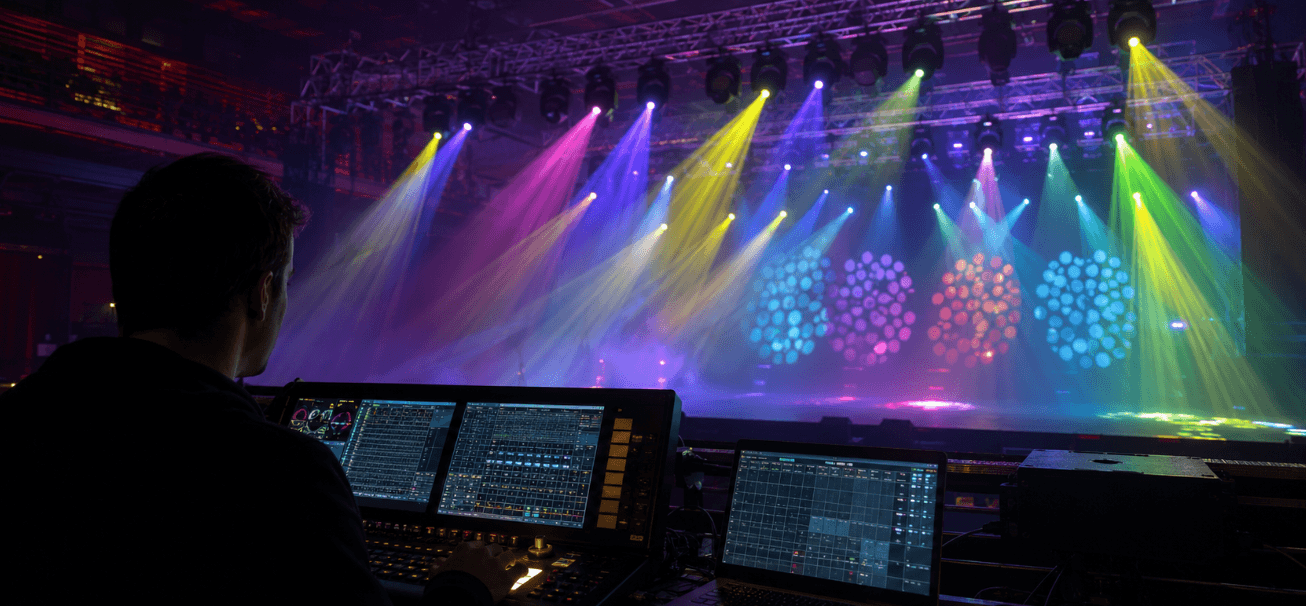
Not finding your stage light in a fixture library does not automatically mean it is incompatible with DMX.
In most cases, the problem is one of four things:
- The exact model has not been added to the software library.
- The fixture and profile are using different DMX modes.
- The profile was created for another control platform.
- The profile is incomplete, incorrect, or outdated.
Before assuming the fixture is unsupported, confirm:
The exact model, selected DMX mode, control platform, and intended profile format.
A controller may sometimes provide limited control through generic or manually patched DMX channels. However, a correctly mapped fixture profile is normally required to access movement, color, gobos, prisms, zoom, pixel control, and other advanced functions.
What Is a DMX Fixture Profile?
A DMX fixture profile tells lighting software what each channel and DMX value range controls.
A typical moving-head profile may define:
- Pan and tilt;
- 16-bit fine movement;
- Dimmer and strobe;
- RGBW or CMY color control;
- Color and gobo wheels;
- Prisms;
- Zoom, focus, and frost where DMX-controlled;
- Animation effects;
- Pixel or zone functions;
- Automatic programs and reset commands.
The number of channels alone is not enough. The profile must also match:
- Channel order;
- Default values;
- Function names;
- DMX value ranges;
- Fine channels;
- The exact DMX mode selected on the fixture.
Two profiles can have the same channel count and still behave completely differently if their channel layouts or value ranges do not match.

Fixture Library, Profile, and Channel Chart: What Is the Difference?
| Term | What it is | What it does |
|---|---|---|
| Fixture library | The profile database inside the control software | Lets users search for and patch fixtures |
| Fixture profile | A software definition for one fixture and DMX mode | Tells the controller how to operate each function |
| DMX channel chart | A human-readable table of channels and value ranges | Used to verify or build a profile |
| DMX mode | A specific channel configuration, such as 18CH or 35CH | Must match on the fixture and controller |
A PDF manual cannot normally be imported as a fixture profile. However, the DMX channel chart inside the manual usually contains the information needed to create one.
Five Common Reasons a Fixture Is Missing
1. The Model Has Not Been Added Yet
Fixture libraries are updated regularly, but they may not immediately include:
- Newly released products;
- Less common models;
- Regional product variants;
- Newly added DMX modes;
- Profiles still waiting for review.
The absence of a model name does not prove that the fixture cannot be controlled.
2. The Fixture Is Listed Under Another Name
The same product may be listed under:
- Its model number;
- A shortened product name;
- A product family;
- A distributor or regional name;
- A version without spaces or hyphens.
Try searching the model number and brand separately instead of using only the full retail title.
For example, search:
BSW500
Betopper
rather than only:
3. The DMX Mode Does Not Match
This is one of the most common causes of incorrect control.
A fixture may offer Basic, Standard, Extended, Pixel, or other channel modes. An 18-channel profile will not correctly control a fixture operating in 35-channel mode.
Common symptoms include:
- Incorrect colors;
- Pan or tilt assigned to the wrong controls;
- Dimmer or strobe not responding;
- Zoom activating another function;
- Incorrect gobo or prism selection;
- Pixel zones behaving unpredictably;
- Accidental reset commands.
Always confirm that the profile and the physical fixture use the same DMX mode.
4. The File Was Created for Another Platform
Fixture-profile formats are platform-specific.
For example:
- SSL2 profiles are associated with Nicolaudie-based workflows, including Wolfmix.
- grandMA2 uses its own Fixture Type structure and correctly formatted XML/XMLP resources.
- Other platforms may use entirely different libraries or profile editors.
An XML extension does not automatically mean that a file is compatible with grandMA2. Different programs can use XML while storing completely different internal data.
Likewise, renaming an SSL2 file to .xml does not convert it into a grandMA2 Fixture Type.
5. The Profile Is Incorrect or Outdated
A fixture may appear in the library but still behave incorrectly because of:
- Wrong channel order;
- Missing fine channels;
- Incorrect default values;
- Incorrect color, gobo, or prism ranges;
- Missing pixel zones;
- An older manual or firmware version;
- A different production version of the fixture.
A useful rule is:
If some functions work but others do not, the problem is usually the profile or DMX mode—not complete incompatibility.
Wolfmix and grandMA2 Compatibility
| Platform | Profile workflow | Betopper SSL2 support | What to do if the fixture is missing |
|---|---|---|---|
| Wolfmix W1 | Nicolaudie SSL2 library, Fixture Builder, and WTOOLS | Supported when the correct profile is available through the Wolfmix/Nicolaudie workflow | Synchronize the matching profile or create a custom fixture |
| grandMA2 | grandMA2 Fixture Types and correctly structured XML/XMLP resources | SSL2 cannot be imported directly | Obtain a grandMA2-compatible Fixture Type or build one from the DMX chart |
| Other platforms | Platform-specific library or profile editor | Depends on the software | Check the accepted format and controller limitations |
Using Betopper SSL2 Profiles with Wolfmix
Wolfmix uses the Nicolaudie SSL2 fixture-library ecosystem and also provides tools for creating custom fixtures.
A Betopper SSL2 profile may be used when it:
- Matches the exact fixture model;
- Matches the selected DMX mode;
- Is available through the appropriate Wolfmix/Nicolaudie workflow;
- Is synchronized correctly through the current Wolfmix tools.
Software interfaces can change, so users should follow the latest Wolfmix instructions rather than relying on older import tutorials.
Using Betopper Fixtures with grandMA2
An SSL2 profile cannot be imported directly into grandMA2.
Users need either:
- A grandMA2-specific Fixture Type;
- A correctly structured grandMA2 XML/XMLP resource;
- A custom Fixture Type built from the fixture’s DMX channel chart.
A file labeled XML should only be used after confirming that it was specifically created for grandMA2.
A Six-Step Troubleshooting Process
Step 1: Confirm DMX Support
Check the fixture menu and manual for:
- DMX512 support;
- A DMX input;
- Address settings;
- Available DMX modes;
- A complete DMX channel chart.
A DMX output is mainly used for daisy-chaining and is not required to confirm that the fixture itself supports DMX control.
Step 2: Record the Exact Fixture Information
Write down:
- Brand;
- Full model number;
- Product version, if applicable;
- Current DMX mode;
- Firmware version, if available.
Avoid identifying the light only by wattage or appearance.
Step 3: Search Using Different Names
Try:
- The full model;
- Model number only;
- Brand name;
- Different spacing or punctuation;
- Product-series name.
Step 4: Check Official Resources
For Betopper fixtures, check:
- The product page;
- The User Guides section;
- The Fixture Library File page.
Available downloads vary by product, channel mode, platform, and profile version.
Step 5: Verify the Profile Before Importing
Confirm that:
- The file was made for your control platform;
- The fixture model is an exact match;
- The profile and fixture use the same DMX mode;
- The channel order matches the current manual;
- The controller supports the required functions.
Step 6: Test Functions in Order
Test:
- Dimmer;
- Shutter or strobe;
- Pan;
- Tilt;
- Basic colors;
- Zoom or DMX-controlled focus;
- Gobos;
- Prisms;
- Pixel or zone functions;
- Reset and automatic programs last.
Testing functions individually makes incorrect mappings easier to identify.
Betopper Fixture Profiles and Support
Betopper provides fixture-profile resources through selected product pages, the User Guides section, and the Fixture Library File page.
Depending on the product and control platform, the available resources may be labeled SSL2, D4, XML, or another platform-specific format.
Always confirm:
- The exact fixture model;
- The selected DMX mode;
- The intended software;
- The profile version.
When a required profile is unavailable, customers can contact Betopper support. Where technically feasible, the team will make a reasonable effort to help create a compatible profile.
Include the following information in the request:
- Full Betopper model number;
- Current DMX mode;
- Console or software name;
- Required profile format;
- User manual or DMX channel chart;
- Screenshots, video, or a description of the issue.
Complex pixel-controlled or high-channel-count fixtures may require additional mapping and testing time.
Betopper Profile Examples
| Model | Functions that must be mapped correctly |
|---|---|
| LM0740 | Pan, tilt, dimmer, strobe, RGBW, zoom, and supported effects |
| LM0740D | Its own model-specific DMX structure; do not substitute an LM0740 profile |
| LB150 | Pan, tilt, dimmer, strobe, color wheel, gobos, prisms, and effect ranges |
| LF350 | Movement, RGB and white LED sections, strobe, and supported pixel or zone modes |
The key point is not the number of channels alone. The model, channel mode, and complete function structure must match.
For example:
- LM0740 and LM0740D have similar names but use separate profiles.
- LB150 uses manual focus, so focus should not be mapped as a DMX-controlled function.
- LF350 profiles must match the selected standard, zone, or pixel-control mode.
Frequently Asked Questions
My DMX light is not listed. Does that mean it is incompatible?
No. Search under alternate model names, check for library updates, download the manufacturer’s profile, or create a custom profile from the DMX channel chart.
Why do the colors and effects respond incorrectly?
The most likely causes are an incorrect DMX mode, incorrect channel order, or incorrect value ranges in the profile.
Can I use a profile from a similar fixture?
It is not recommended. Fixtures with similar names, power ratings, or appearances may use completely different DMX structures.
Why can’t my software import an XML file?
XML is only a general file format. The internal structure must match the requirements of the target control software.
Can an SSL2 profile be converted directly into a grandMA2 file?
Not by renaming or directly importing it. A grandMA2 Fixture Type must be created using the fixture’s DMX channel chart and grandMA2’s required structure.
Why do only some fixture functions work?
The profile may be missing channels, using incorrect DMX ranges, or built for a different channel mode.
Final Answer
A fixture does not need to be prelisted in a library to be DMX-compatible.
Correct control depends on four details:
Fixture model + DMX mode + profile structure + control platform
When those four elements match, many missing-fixture problems can be resolved through an official profile, a custom fixture definition, or manufacturer support.
For Betopper fixtures, check the product page, User Guides, and Fixture Library File page first. When no suitable profile is available, contact Betopper support with the model, DMX mode, software, and required format.

Dejar un comentario
Todos los comentarios se revisan antes de su publicación.
Este sitio está protegido por hCaptcha y se aplican la Política de privacidad de hCaptcha y los Términos del servicio.